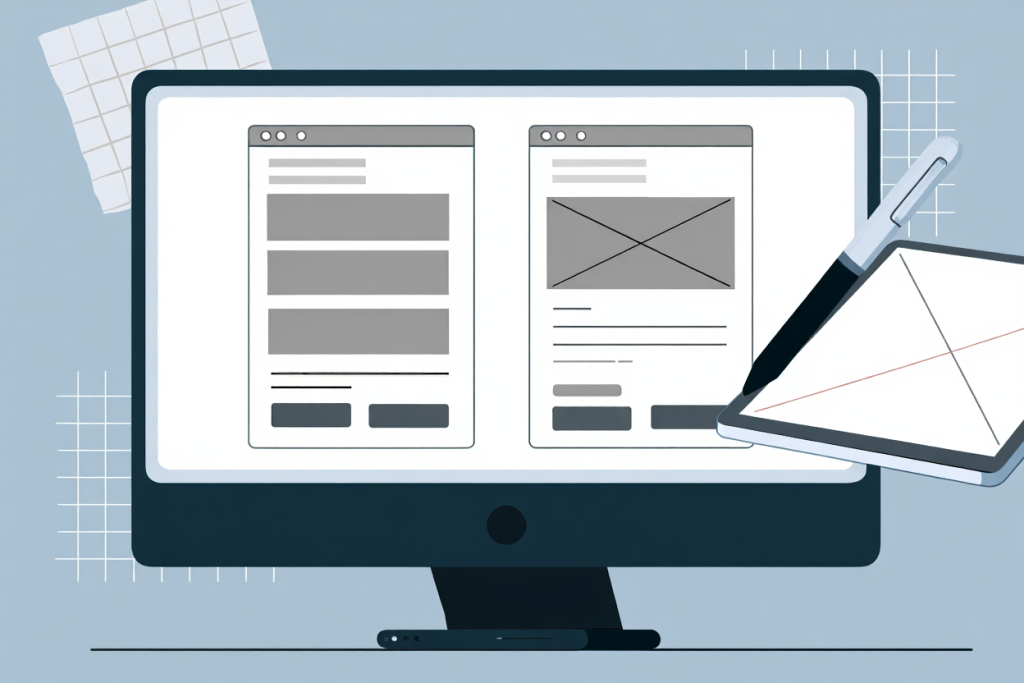
Wireframing tools help designers create the blueprints of websites and apps, focusing on layout and user flow before adding detailed design elements. These wireframing tools come as both cloud-based apps and installed software, so teams can collaborate on any platform. By using placeholder shapes (gray boxes for images, lines for text) and simplified navigation, teams can align on structure without getting lost in colors or fonts. This approach streamlines communication: one study found wireframes reduce misunderstandings and allow faster design iterations.
In practice, roles across design teams rely on wireframes. For example, web designers use wireframe tools to plan the layout and user experience of websites, ensuring all stakeholders are on the same page. Similarly, UX/UI designers use wireframe tools to outline how a product functions and where each element goes, helping catch misunderstandings early. Even product managers and analysts sketch wireframes to model business flows before coding. Research has shown that introducing wireframes early on – whether on paper or digitally – can significantly boost team collaboration and engagement during brainstorming.
A typical wireframing workflow might include:
- Brainstorm: Sketch rough layouts on paper or a whiteboard (boxes for images, lines for text) to explore ideas quickly.
- Digitize: Create a basic wireframe in your chosen tool (e.g. Figma, Balsamiq), using real placeholders and UI components. This results in a clean, sharable digital mockup.
- Review: Share the wireframe with stakeholders or team members. Gather feedback via comments or workshops, focusing on layout and flow rather than style.
- Iterate: Update the wireframe based on feedback. Adjust layouts, user flows, and add interactivity (e.g. link pages together).
- Prototype (optional): Turn the wireframe into a clickable prototype in the same or another tool (e.g. link screens in Adobe XD or Figma). This lets users or clients navigate the design as if it were real.
- Handoff: Export the final designs or specifications for development. Many tools generate code snippets or support handoff apps (Zeplin, Avocode, etc.) to ensure developers understand the layout and assets.
Note that many modern wireframing tools also include prototyping and design-system features. For instance, Figma and Adobe XD act as both wireframing tools and prototyping platforms, offering built-in UI libraries, auto-layout and shared style libraries. This lets UI designers start with a simple layout and then add interactions and visuals in the same tool, streamlining the design hand-off.
Key Features of Effective Wireframing Tools
Effective wireframe software shares certain features that boost team productivity:
- Real-time Collaboration: Modern wireframing tools online (cloud-based) let multiple designers and stakeholders work on the same wireframe simultaneously. Features like live cursors, comment threads, and version history (as found in Figma, Miro, Whimsical, etc.) mean feedback is instant and centralized. This live co-editing accelerates decision-making and keeps all team members aligned. Most tools also integrate with chat and issue-tracker apps (Slack, Jira, Trello), so design feedback stays connected to the wireframe.
- Pre-built UI Libraries: Top tools include drag-and-drop libraries of common interface components (buttons, menus, forms). For example, Figma and UXPin provide extensive component libraries so teams don’t redraw basics from scratch. Many wireframe libraries even include built-in icon sets (like Material Icons or FontAwesome) and common UI kits (like Bootstrap or iOS), allowing you to quickly drag standard components into your design. Having ready-made UI kits not only speeds up layout building but also ensures consistency.
- Device Templates & Responsive Design: Good wireframing software offers preset artboards for phones, tablets, and desktops. Designing within these templates (e.g. iPhone, Android, iPad dimensions) ensures layouts will adapt across devices. As one industry source notes, with over 65% of web usage on smartphones, choosing tools that support responsive and mobile designs is vital. Some tools even let you preview your wireframe on an actual smartphone or tablet in real time to test mobile layouts.
- Export & Developer Handoff: Once wireframes are approved, designers must hand them off to developers. Wireframe apps often allow exporting to PNG/PDF/SVG or even generating detailed design specs. For instance, many tools can auto-create style guides. This helps developers understand the design exactly. Top tools include built-in export and hand-off features to keep developers in sync. (For example, Figma can export CSS code snippets or redlines, and other tools support Zeplin/Avocode integration.)
- Ease of Use (Low-Fidelity Modes): A simple, sketch-like interface helps non-designers contribute. Tools like Balsamiq mimic hand-drawn sketches with minimal options, keeping wireframes abstract and focused on structure. This low-fidelity approach ensures teams discuss functionality without getting distracted by visuals. For example, Balsamiq’s sketchy style encourages quick ideation, while many design tools offer a grayscale “wireframe mode” for early drafts.
- Shared Design Systems: Advanced tools let teams build shared libraries of UI components, colors, and typography. For instance, Figma and UXPin enable a common component library that can be reused across projects. This keeps wireframes consistent with your brand’s design system and speeds up the process of building each screen.
- Cross-Platform Access: Many wireframing tools online run in web browsers, making them OS-agnostic (Windows, Mac, Linux) and easy to adopt. Others, like Adobe XD or Sketch, require desktop installations. Choose based on your team’s environment: browser-based tools (e.g. Figma, Penpot) work anywhere without installs, while specialized desktop software may offer deeper local features. Some tools also provide offline desktop apps (e.g. Figma Desktop, UXPin) or mobile apps for reviewing designs on the go.
Choosing the right tool often depends on combining these features with project needs. In summary, the best wireframing tools provide robust collaboration, component libraries, and seamless export to development.
Top Wireframing Tools for UX/UI Design
Among wireframing tools, Figma stands out: it’s used by roughly 82% of interface designers, underscoring its dominance in the field. Corporate adoption of Figma can be even higher – over 93% in some enterprises. Leading design teams rely on a variety of wireframing apps. Below are some of the most powerful wireframing tools, with their strengths and ideal use cases:
- Figma: Among wireframing tools, Figma is a cloud-based design platform that has become the gold standard. Its browser-based editor and FigJam whiteboard let teams co-design in real time. It offers device frames, extensive plugins (icons, stock images, etc.), and real-time commenting even on free accounts. Figma’s collaborative speed and flexibility make it ideal for modern UX design teams. Because it’s web-based, everyone is always on the latest file. (In fact, Figma reports teams can “quickly create, share, and iterate on low-fidelity wireframes in the browser”.)
- Adobe XD: As part of Adobe Creative Cloud, Adobe XD is a cross-platform wireframing and prototyping tool. It integrates with Photoshop/Illustrator, supports multiple artboards, and includes interactive transitions. XD has features like voice triggers and auto-animations for richer prototypes. Many UX/UI teams choose XD because it produces polished wireframes and fits into the Adobe ecosystem. It also offers co-editing and even supports auto-layout, making it powerful for UI design. According to UX resources, XD is beginner-friendly and excels at both wireframes and high-fidelity designs.
- Balsamiq: A classic low-fidelity wireframing tool with a hand-drawn look. Balsamiq’s interface simulates sketching on a whiteboard, with a drag-and-drop palette of UI components. This no-nonsense approach keeps layouts grayscale and simple, focusing on structure. It’s ideal for rapid brainstorming: even non-designers can sketch ideas easily. Balsamiq exports to PNG/PDF and has budget-friendly plans, making it a go-to for quick layout tests. It remains so popular that some usability surveys still give it a perfect 5/5 rating.
- Moqups: A web-based tool known for its ease of use. Moqups provides many templates for common screens (mobile login, web page, flowchart, etc.) so newcomers can start fast. It supports real-time collaboration (drawing overlays, comments) and integrates with Slack, Google Drive, and other platforms for easy file sharing. The free plan allows 2 projects (400 objects each). Moqups is great for small teams or beginners wanting simple, visual site or app wireframes, especially during early ideation.
- UXPin: A powerful tool for teams that want to build wireframes closer to production code. UXPin lets you import design libraries from Sketch/Figma or even link React/Bootstrap components, syncing designs with real code elements. It features an extensive component library and interactive “Merge” mode to sync live code components into your wireframes. This power means a steep learning curve, but it’s ideal for large teams needing detailed specs and complex prototypes. Because of this code-based approach, UXPin can reflect real product libraries – for example, you can sync a change in a React component back to the wireframe through UXPin’s Merge feature.
- Justinmind: A desktop wireframing and prototyping app (Windows/Mac) focused on high-fidelity and interactivity. Justinmind includes built-in UI kits for web and mobile, so you can simulate real form input and navigation. Its drag-and-drop canvas is easy for beginners, yet it supports custom animations and gestures. Designers use Justinmind when they need fully interactive mockups (e.g. a clickable app demo). It also offers a 45-day free trial for teams to test its features. The downside is it’s not cloud-based and uses a check-in/check-out model for collaboration, but many teams appreciate its realistic prototyping capabilities.
- Visily: An AI-assisted wireframe tool great for rapid ideation. With Visily, you can describe a screen in text (like “mobile shopping app login and home”) and it will auto-generate wireframe layouts in seconds. For example, a simple prompt instantly produced several screen designs with flows. Visily’s interface is clean and easy; it even offers a plugin to send designs into Figma for further refinement. This makes it perfect for teams who want to brainstorm wireframes with AI, then hand them off for detailed design.
- Sketch: A popular macOS wireframing tool with a huge plugin ecosystem. Sketch’s vector-based environment ensures wireframes scale cleanly, and community-made UI kits speed up layouts. Many designers using Macs prefer Sketch for its precision and extensibility. It’s especially strong for high-fidelity UI design, but it also handles low-fi wireframing well. (Sketch is Mac-only; cross-platform teams often use Figma instead.) Hundreds of plugins (for wireframing, prototyping, and developer handoff) make Sketch highly adaptable.
- MockFlow: An online wireframing/UI design tool emphasizing speed. MockFlow offers a rich library of UI elements and simple collaboration. Its free plan includes 1 project with 3 pages. Teams often pick MockFlow when they need quick sketches without fuss – it automates repetitive tasks and tracks revisions, making fast iteration easy. Higher tiers add features like customer journey mapping and sitemaps.
- Axure RP: A robust wireframing and prototyping tool aimed at enterprise teams. Axure lets you build dynamic wireframes with conditional logic, variables, and data-driven components, as well as adaptive views for different screen sizes. This power means a steep learning curve, but teams that need complex interactions often rely on it. Axure also provides a cloud service and mobile preview apps for collaboration.
- Other Notables: Penpot (free, open-source online editor), Cacoo (diagramming with wireframe templates), Whimsical (diagrams + quick UI flows), and diagrams.net (Draw.io) (free offline diagrams) are also worth exploring. Each brings unique strengths (open-source, collaboration features, simplicity or AI) that can fit specific team needs. For brainstorming and planning, tools like FigJam (Figma’s whiteboard) or Mural/Whimsical also offer simple shape libraries to sketch wireframes in real time across locations.
For websites vs. apps: wireframing tools for apps often include mobile UI kits, while wireframing tools for websites may emphasize navigation and sitemap planning. For example, if you’re focused on mobile, ensure the tool has smartphone artboards (Figma, Adobe XD, Justinmind). If your project is a website, consider tools with strong support for page layouts and content structure. Ultimately, most modern tools support both – you simply choose the right canvas size and UI component library for the task.
Free and Online Wireframing Tools
Budget-conscious teams have many wireframing tools for free or open-source options. Modern wireframing tools for UX design often run in the browser (online), requiring only an account. Some top free options include:
- Penpot (Free, Open-Source): A browser-based design/wireframe tool. Penpot is free forever (open source) and supports vector graphics and basic prototyping. It’s great for teams that prefer open software.
- Wireframe.cc: An ultra-minimal web wireframe editor. No sign-up is needed – just start sketching. The free version has one page per wireframe, but it’s perfect for very quick, low-fi sketches.
- Miro (Free Plan): A digital whiteboard with a wireframe library. Miro’s free plan allows unlimited collaborators on up to 3 boards. Designers use it for brainstorming site maps or simple wireframes alongside flowcharts and sticky notes.
- Cacoo: An online diagramming tool with wireframe templates. The free version has unlimited users (up to 6 diagrams) and basic export (PNG). It integrates with Google Docs, Slack, etc., which is handy for collaboration.
- diagrams.net (Draw.io): A fully free, open-source diagramming app (browser or desktop). No login is required. It has a large shape library and can be used for quick wireframe sketches or UI flow diagrams.
- MockFlow: Free plan offers 1 project (3 pages). Its drag-and-drop UI elements are useful for beginners.
- Whimsical: A collaborative wireframe/diagramming tool with 3 free boards. It includes UI components and even an AI-powered mind-mapping feature to generate ideas.
Even mainstream wireframing software offer free tiers. For example, Figma’s free plan is generous, Adobe XD has a starter plan, and UXPin allows 2 free prototypes. There are also simple no-login options like MyDraft.cc and desktop apps like Pencil Project. In summary, wireframing tools free use are available at every level – from simple sketch tools to robust editors – so teams can experiment without cost.
Choosing the Right Wireframing Tool
With so many options, pick a tool that fits your team’s needs. Consider:
- Collaboration: If multiple designers or stakeholders will work together, pick a cloud-based tool with real-time editing (Figma, Miro, Whimsical). These let everyone comment and edit at once, and support granular permission settings (view/comment/edit) for different team members.
- Design Fidelity: For quick low-fi sketches, tools like Balsamiq or Moqups are ideal. For high-fidelity or interactive prototypes, consider UXPin or Justinmind (they simulate logic and animations). Decide whether you need a simple layout proof or a near-final clickable mockup.
- Platform: If you’re designing primarily for mobile apps, ensure the tool has mobile device frames (Figma, Adobe XD, Justinmind). If it’s a website, choose a tool with web templates and possibly sitemap support (e.g. Jumpchart). Most modern tools support both; just pick the right artboard and libraries for your platform.
- Budget: Evaluate free vs paid. Many teams start with free plans (Figma’s free tier, Miro’s boards, etc.) and upgrade if needed. Check trial periods – all major wireframing tools offer free trials so you can test their collaboration and export features. Paid plans often unlock higher fidelity options or larger team usage.
- Integrations: See if the tool fits your workflow. Need Slack or Jira integration? Tools like UXPin and Figma have plugins and strong developer handoff features. If you maintain a design system, make sure the wireframe tool can import or sync those components.
Finally, account for compatibility: some tools (Sketch, Adobe XD) are Mac-only, while others (Figma, Moqups, Penpot) are cross-platform web apps. And remember mobile: with over 65% of users on smartphones, choosing tools that support responsive/mobile design (touch targets, gestures) is vital. Ultimately, the best wireframing tools for designers are those that align with your team’s size, skills, and project goals.
Frequently Asked Questions (FAQs)
Q: What are wireframing tools?
A: Wireframing tools are digital applications that let designers create simplified layouts of websites or apps (the “skeleton” of a product). They use placeholder shapes and basic components to represent key elements. This helps teams focus on structure and user flow without distractions. According to UX experts, wireframes “help teams align on requirements” by emphasizing layout and functionality.
Q: Which wireframing tool is best for UX design?
A: The best tool depends on your needs. Currently, Figma is extremely popular for UX design due to its real-time collaboration features. Other top choices include Adobe XD (for Adobe CC users), Moqups (for beginners), UXPin (for code-driven teams), and Balsamiq (for quick low-fi layouts). Each has strengths – many teams try a few tools to see which workflow fits best.
Q: Are there free wireframing tools?
A: Yes – many wireframing tools offer free tiers. For instance, Figma’s free plan includes unlimited files and collaborators, Miro’s free plan includes 3 edit boards, and Penpot is completely free for individuals. Open-source or no-login options like Draw.io and Wireframe.cc are also free. These free tools typically cover basic wireframing needs, so teams can get started without cost.
Q: How do wireframing tools differ for websites vs. apps?
A: Some tools are more web-oriented (e.g. Jumpchart specializes in site maps), while others emphasize mobile. For mobile apps, make sure your wireframe tool has smartphone artboards and mobile UI kits (Justinmind and Figma have built-in iOS/Android templates). Most modern tools support both – you simply choose the right canvas. The main difference is the component library: app-focused tools include touch-friendly controls, whereas website tools include navigation bars and content grids.
Q: How do I transition a wireframe to a final design?
A: Use a tool with strong handoff and prototyping features. Tools like Figma, UXPin, and Adobe XD allow designers to annotate wireframes and automatically generate specs (dimensions, assets, CSS) for developers. They can export assets or code snippets directly. A common workflow is to finalize layout and UX in your wireframe tool, then continue adding visuals or interactions in the same app. Shared libraries in tools like Figma also help ensure your final UI matches the wireframe structure.
Q: What’s the difference between a wireframe and a prototype?
A: A wireframe is a static, low-fidelity layout of a design (structure, content placement), whereas a prototype includes interactive elements (clickable buttons, animations) to simulate user flow. Many modern tools support both functions – for example, Adobe XD is designed for both low- and high-fidelity designs, so you can easily turn a static wireframe into a clickable prototype. The key difference is interactivity: wireframes show what the UI contains, prototypes show how it behaves.
Q: Should I sketch wireframes on paper or use a digital tool?
A: Both approaches are useful. Sketching wireframes on paper is quick and flexible for initial brainstorming, while digital tools (Figma, Balsamiq, etc.) are better for refining and sharing designs. Often, teams start with hand-drawn wireframes to flush out ideas, then replicate them in software to iterate and collect feedback. Even a research study found that using wireframes – whether on paper or digitally – boosts team collaboration during design sessions.
Q: Can I use wireframing tools offline?
A: Some tools offer offline or desktop versions. For example, Figma has a desktop app, and tools like Sketch or Axure are native desktop software. Other tools are browser-only but often allow you to work offline once the page is loaded. If you need guaranteed offline access, desktop wireframing software (Sketch, Axure, Balsamiq desktop) is recommended.
Conclusion
Powerful wireframing tools for designers empower UX/UI teams to clarify structure, collaborate, and iterate faster. From cloud-based suites like Figma and Adobe XD to specialized free apps like Wireframe.cc and Penpot, the right wireframing tools can turn early concepts into clear digital layouts. The top tools all share common strengths: real-time collaboration, robust UI libraries, and easy handoff to developers. Ultimately, choose wireframing tools that best fit your team’s workflow and project goals. Try out a few to see which interface and features resonate most.
If you found this guide helpful, share it on social media or leave a comment below with your favorite wireframing tool. Your feedback will help other designers discover the best tools for their projects. For more expert tips and UX/UI design updates, subscribe to our newsletter or follow our social channels. Remember, the best way to master any wireframing tool is to start using it in real projects – with practice, your team will become faster at turning concepts into designs.