In Minecraft, a world seed is like a unique code that determines every detail of a new world. By reusing a seed number or text, players generate the exact same terrain, biomes, and structures every time. Many players share interesting seeds on forums or YouTube. This is where the Chunkbase Seed Map tool was created. It displays your entire world’s terrain, villages and structures for any seed before you even play. Instead of exploring blindly, you can pinpoint the best Minecraft worlds in advance: locations of villages, biomes, strongholds, nether fortresses, and more are all visible in the browser.
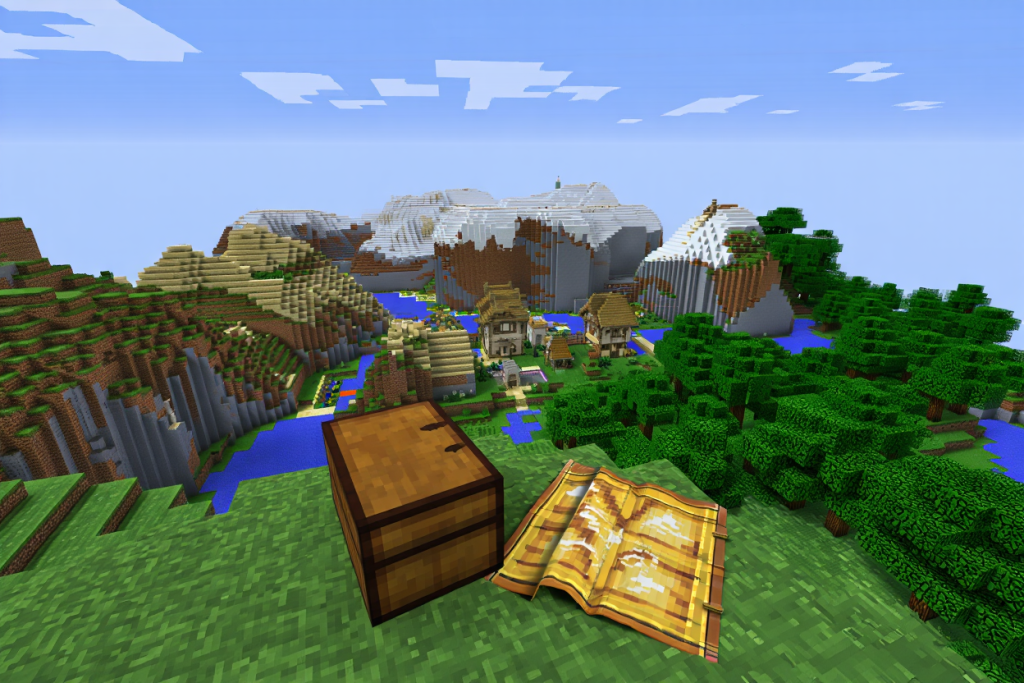
Minecraft is massive – as of 2026 it has over 200 million players worldwide. For example, the image above shows a Minecraft island with a creeper – typical terrain you might encounter. Using this tool, you could preview that island’s layout (biomes, villages, etc.) without moving a block in-game. Whether you want many villages at spawn or a rare biome nearby, understanding seeds is the first step.
Understanding Minecraft Seeds
A seed is a number or string used to initialize Minecraft’s world generation. The Minecraft Wiki explains that a world’s seed is set when the world is created and can be either a number or a text phrase. Changing even one digit or letter in the seed creates a completely different world. Seeds let players share and revisit interesting worlds: enter the same seed twice and you get the exact same environment. This means someone could share a “perfect survival starter” seed, and you could experience it too.
Different versions and editions of Minecraft handle seeds slightly differently. Since 1.18, Java and Bedrock seeds often produce similar terrain, but structure placement (villages, strongholds, etc.) can still vary. In general, Java Edition seeds tend to give more accurate results in mapping tools (because Mojang’s algorithm is fully known). Bedrock Edition has a different engine, so Chunkbase’s Bedrock mode will usually match but sometimes places structures a few blocks off. For example, Java uses 64-bit seeds and a linear congruential generator, while Bedrock uses a different random process, so strongholds or villages might not align between editions. The Chunkbase Seed Map supports both editions and lets you select the correct one, so always match the tool to your world’s edition and version.
Because seeds are just numbers (they can be entered as text phrases and converted internally), it’s easy to get a seed from any world. In Java, press in chat and the game will display your world seed. In Bedrock, open the world’s Game Settings or Advanced page and the seed is listed there. Once you have the seed, copy it and paste it into the Chunkbase tool.
What is the Seed Map Tool?
The seed map is one of the apps on Chunkbase, a site specializing in Minecraft mapping utilities. Chunkbase is a fan site for Minecraft tools (not an official Mojang product). The site describes the Seed Map as “an online map viewer that helps you find new Minecraft seeds and locate biomes, structures, slime chunks and other features in your current world”. This seed map covers every dimension (Overworld, Nether, End) and works for both Java and Bedrock editions. In other words, Chunkbase’s Seed Map is a graphical world preview for any seed, showing you the entire terrain and locations of interest before you ever set foot in-game.
When you open the Seed Map app, you can type or paste your seed, select your version (Java or Bedrock), and the map loads that world. You can also click Load from Save… and select your file to automatically grab the seed of your single-player world. This is very convenient – for example, if you found a cool world in Creative mode and want to use it for Survival, just load the save and preview it.
The interface includes many toggles for features. You’ll see checkboxes for Biomes, Spawn Point, Village, Dungeon, Stronghold, Fortress, etc.. Enable or disable any combination. For example, if you only care about villages, enable “Village” and only village icons will appear. If you’re hunting strongholds, enable “Stronghold”. This effectively turns the map viewer into a custom finder tool. You can even click on the map to drop a pin – the map will give you exact coordinates for that point.
The map supports three dimensions: Overworld, The Nether, and The End. Under the dimension selector, choose “The Nether” to see Nether Fortresses, Bastion Remnants, Nether Fossils, and so on. Choose “The End” to display End Cities, End Gateways, etc.. This comprehensive, cross-dimensional view is extremely valuable for planning multi-world projects or speedruns. For example, enabling Nether mode with Nether Fortress turned on will immediately show all fortress locations in that world.
Tip: If you’re on Bedrock Edition, pick the correct Bedrock version in the dropdown. Bedrock worlds can differ slightly between versions, so matching your game’s build (e.g., 1.21.0–1.21.50) ensures the map matches reality.
Steps to use the seed map:
- Enter your world seed in the seed field (or click Random to try a random seed).
- Select your Minecraft version and edition (Java or Bedrock) in the dropdown.
- (Optional) Click Load from Save and select your file to automatically load your world’s seed.
- Choose the dimension (Overworld, Nether, or End) from the menu.
- Toggle features on/off by clicking the icons above the map (Biomes, Village, Temple, etc.).
- Zoom and pan the map (drag with mouse or arrow keys) to explore. Click any icon to see exact X/Z coordinates.
- Share Results: After setting your seed and features, click Share to copy a link to your exact map view. This link can be sent to others so they see the same map with those features toggled.
Browser Support: The tool requires WebGL. If it fails to load or shows a blank map, ensure your browser is updated (Chrome, Firefox, Edge) and that WebGL is enabled. Very old or restricted browsers (some mobile browsers) may not run it.
This combination of steps turns the Seed Map into a powerful finder tool for Minecraft.
Key Features of the Seed Map
The Chunkbase Seed Map offers dozens of feature overlays. Here are some highlights:
- Biomes: Colors the map by biome type. Spot rare biomes (Mangrove Swamp, Mushroom Fields, Cherry Grove) at a glance. The biome overlay is very accurate for Java and mostly accurate for Bedrock.
- Villages: Shows all villages. This lets you count them or find clusters easily – great for early trades/farms.
- Structures: Displays many Overworld structures:
- Desert Temples, Jungle Temples, Shipwrecks, Ocean Ruins, Igloos, etc. (toggle each individually).
- Dungeons (cave rooms), Mineshafts, Ruined Portals, Mineshafts, etc.
- The list also includes Ancient Cities, Woodland Mansions, Strongholds, Witch Huts, etc.
- Slime Chunks: Highlights all slime chunk centers (green squares). Essential for planning slime farms on Java.
- Caves & Ravines: At high zoom, it can draw estimated cave and ravine shapes. Useful for finding cave systems.
- Nether Features: In Nether mode, it finds:
- Nether Fortresses (marked red) and Bastion Remnants (purple).
- Nether Fossils, Ruined Portals, etc.
- End Features: In End mode, it shows End Cities and End Gateways.
- Spawn Point: Marks the world’s spawn (white icon with a bed).
Enabling “Select all” toggles every feature, so the map will display everything at once. You can then disable what you don’t need. Essentially, you can see every notable point of interest at once. In this way, the seed map can help you “find the best Minecraft worlds” by letting you visualize every resource in a world.
Overworld Highlights
By default you view the Overworld. Use it to spot:
- Rare biomes: e.g. Cherry Grove, Snowy Slopes, Bamboo Jungle.
- Villages: Plains, Desert, Jungle villages near spawn.
- Temples & Structures: Desert/Jungle Temples, Witch Huts, etc.
- Ocean Structures: Monuments, Shipwrecks, Ocean Ruins.
- Terrain: Oceans, rivers, mountains, caves (with cave view).
The biome overlay is especially powerful – it even lets you view biome layers underground, revealing hidden mushroom islands or large cave systems that you might otherwise miss.
Nether and End Highlights
Switch the Dimension menu to “The Nether” and you’ll see Nether-specific structures:
- Nether Fortresses: Needed for wither skeletons and netherite.
- Bastion Remnants: Home to piglins and rare loot.
- Nether Fossils, Ruined Portals (new in 1.16+), etc.
Similarly, selecting “The End” shows:
- End Cities/End Ships: For Elytra and chorus.
- End Gateways: The portals to far-end islands.
For example, enabling Nether mode with Nether Fortress will highlight exactly where all the fortresses are, even if you haven’t explored. This is a huge speed-up for gathering materials.
Java vs Bedrock: Choosing the Right Edition
Always pick the correct edition and version. Java and Bedrock use different algorithms, so mixing them will give wrong results. The tool supports both editions:
- Java Edition (64-bit): Generators are well-known and highly accurate. Use “Java X.Y” for your world. (Java uses 64-bit seeds.)
- Bedrock Edition (32-bit): Newer updates align Bedrock world-gen with Java, but some differences remain (villages and strongholds spawn differently). Use the corresponding “Bedrock X.Y.Z” option.
If you mix up (for example, use a Bedrock seed in Java mode), the map will not match your world. For instance, Java uses a 64-bit linear congruential generator, while Bedrock uses a different system, so structures like strongholds can end up in different spots. Chunkbase lets you Load from Save so it can auto-detect your version, which helps avoid mistakes.
Finding the Best Minecraft Worlds
With the seed map, you can hunt for ideal worlds by any criteria. Here are some strategies:
- Set your goals: Decide what you want. A good Survival start? Look for seeds with a village, temple, or monument near the origin. A scenic build? Find dramatic biomes or tall mountain. Farming world? High mob spawner density or easy slime chunks.
- Use seed lists: Minecraft forums and sites list “best seeds.” Copy those seeds into Chunkbase to preview them. For example, SparkedHost’s list had a seed with an ancient city and a woodland mansion right near spawn. Pasting that seed into the Chunkbase Seed Map instantly confirmed the spawn and features, saving hours of testing.
- Random trials: Hit the Random button or tweak digits. The map updates in real-time, so randomly wandering through seeds is fast.
- Use seed finders: Tools like Cubiomes or SASSA search millions of seeds by criteria (for example, spawn near a mesa plus a cave). Once you find a promising seed, paste it into the map viewer to verify.
- Coordinate planning: The map even highlights chunk centers. For example, if you want a particular biome at chunk (5, –3), you can scroll to X=80, Z=–48 and see what’s there.
- Stack features: If you want multiple conditions (e.g. a village next to an ocean monument), enable both on the map and look for a seed that has both icons close by.
Always double-check the map’s seed and settings. If something doesn’t match your in-game world, it’s usually because the seed or version was entered wrong. Once you get it right, use the map to confirm everything before you start.
Example World Seeds
Try these intriguing seeds to see the map in action:
- Not-so-deserted Island (Seed: 655207162180) – A survival island with a village, two shipwrecks, and a desert temple. Plug this seed into the map and you’ll see all these features immediately.
- Twin Islands (Seed: 7850875) – Spawn between two huge islands (Badlands and Jungle). The map shows a desert temple, an ocean monument, and jungle temples.
- Village Mansion Island (Seed: 5705783928676095273) – Start on an island with a spruce village; the map shows a Woodland Mansion and an Ocean Monument nearby.
- Ice Spike Village (Seed: 105849523) – Spawn in a snowy tundra village ringed by ice spikes. Use the seed map to see the entire ice spike biome layout.
These examples illustrate how you can preview and pick a world that fits your needs in seconds.
How It Works
The Chunkbase Seed Map actually runs Minecraft’s world generation in your browser. Behind the scenes, it:
- Generates terrain by chunks: It splits the world into 16×16 block chunks and simulates terrain/biomes for each chunk based on the seed.
- Computes structures: It applies the game’s algorithms (for that version) to find all structures (villages, temples, strongholds, etc.).
- Renders a map: It then draws a top-down map, coloring biomes and placing icons at each found structure.
This calculation happens as you pan and zoom. The tool only generates chunks as needed. It’s optimized, but if you enable a lot of features at once, it may take longer (Chunkbase even suggests toggling one feature at a time for speed). Once computed, the map is kept client-side, so moving around is fast. In effect, the Seed Map is like running the world generator on hyperdrive in your browser.
Understanding this helps explain why, for example, having all icons on can slow loading. The app even warns if you try to load thousands of points at once. But the upside is, you’re essentially previewing the whole Minecraft world without lag.
Saving and Sharing Your Map
You can save or share your map data:
- Share link: Click Share to generate a URL to your current map view (seed, toggled features, and coordinates). Send this link to friends or bookmark it; it will open the map exactly as you left it.
- Export locations: Click Save locations… to download a file of all checked markers (e.g. which villages or temples you’ve marked). Later use Load locations… to restore them. This is handy for tracking which landmarks you’ve already visited.
- Screenshots: You can press F11 for a fullscreen map and screenshot it. (Remember to add a caption with the seed if you post it.)
These let you, say, plan a multiplayer session together – everyone can load the map or locations file and see the same world details.
Other Chunkbase Tools
Chunkbase offers many specialized tools alongside the Seed Map:
- Biome Finder – highlights where specific biomes generate in a seed.
- Village Finder – lists all villages, outposts, and desert villages.
- Slime Finder – shows slime chunk centers.
- Nether Fortress Finder – locates Nether Fortresses.
- Raid Finder – finds pillager outposts for raids.
- Cave Finder – previews cave and ore layers.
These tools are more focused: for example, use Village Finder to list all villages instead of visualizing them. The Seed Map remains the most comprehensive, as it can show nearly everything at once.
Troubleshooting & Tips
- Seed entry: Ensure you enter the exact seed (no extra spaces). A small typo means a completely different world.
- Version/edition: Make sure to pick the correct Java/Bedrock edition and Minecraft version. Even selecting the wrong minor version can shift structures.
- Zoom level: Some icons only appear when zoomed in enough. If you don’t see something, try zooming closer or toggling that feature.
- Missing features: Some things don’t show perfectly. Chunkbase notes that dungeons, enchanted apples, and some End City ships might not appear. In those cases, use the map’s indication as a general area and search in-game.
- Coordinates: The coordinates given match in-game (Java and Bedrock share X/Z values). Use F3 (Java) or your map to navigate to those coordinates.
- Browser/WebGL: The app needs WebGL. If it won’t load, use an up-to-date browser (Chrome/Firefox/Edge) with WebGL enabled.
- Chunk centering: The map marks the center of chunks for some features (like slime chunks). Remember a slime icon means that 16×16 chunk has slimes.
- Cheating?: Revealing undiscovered areas is sometimes seen as cheating. The seed map’s own FAQ says “whether it’s considered cheating is subjective”. Many players use it simply as a planning tool.
With these tips, you can get accurate results. And if all else fails, re-check your seed and settings – most errors come from a mismatch there.
FAQs about the Seed Map
Q: What is this seed map and how is it different from the Biome Finder?
A: The seed map is an interactive preview of a Minecraft world: you enter a seed and it shows biomes, villages, structures, etc., all on one map. By contrast, the Biome Finder (another tool) only highlights biomes. Think of the seed map as a Google Maps for your world – it shows everything at once.
Q: How do I get my world’s seed for the map?
A: In Java Edition, type in chat – the game will display your seed. In Bedrock, open the world’s settings and look under Seed. Once you have the seed number, paste it into the map tool.
Q: Will this map show absolutely everything?
A: It’s very thorough, but not 100%. Chunkbase notes some features may be missing or off. For example, small structures like dungeons or some End ships might not be shown. Also, the map shows chunk-center markers for things like slime. Usually the X/Z coordinates it gives are correct, but for underground or missing items, use the map as a guide and search in-game.
Q: Can I use this map with Bedrock worlds?
A: Yes, just select the Bedrock edition and correct version in the app. Chunkbase’s Bedrock mode will use Bedrock’s generation rules. Recent Bedrock versions now match Java biomes, but remember that some mechanics (villages, strongholds) still differ. Using the Bedrock mode ensures the map aligns with your Bedrock world.
Q: Is it cheating to use this map?
A: It depends how you play. The map does reveal locations without exploring, so some players consider it cheating. However, many use it as a helpful planning tool. As the map’s own FAQ says, “whether it’s considered cheating is subjective”. It’s up to you – think of it as a smart navigation aid.
Q: How can I share what I found?
A: You can save or share the results. Export your marked locations with Save locations… and send that file to a friend (they can load it in the map). Or simply share the seed number and the coordinates you found. You can also click Share to copy a map link, or screenshot the map (make sure to note the seed!). Others with the link or file will see the same landmarks on the map.
Q: I’m new – how do I get started with the map?
A: See the “Getting Started” section below for step-by-step basics.
Getting Started (New Players)
If you’ve never used seeds or the map:
- Get your seed:
- In Java, open chat (press ) and type . Copy the number that appears.
- In Bedrock, open the world settings (tap the pencil/edit button) and scroll to Seed. Copy that number.
- Open the Seed Map: In a web browser, go to chunkbase.com/seed-map.
- Enter seed & version: Paste the seed into the tool. Select Java or Bedrock and pick the correct version (e.g. “Java 1.21” or “Bedrock 1.21.0”).
- Pick features: By default you see the Overworld. Enable checkboxes like Biomes and Village.
- Explore the map: Zoom and scroll. You’ll see a colored map and icons for structures. Click an icon to view its X/Z coordinates.
- Go in your world: Use F3 or your map to travel to those coordinates in Minecraft. You’ll find the village, temple, etc. exactly as shown.
Even beginners find the map intuitive. For example, you could immediately discover if your spawn has a nearby village or mine shafts in minutes – without wandering around aimlessly.
Conclusion
The Chunkbase Seed Map is an indispensable tool for Minecraft players who want to plan ahead. Whether you’re looking for a perfect village spawn, dramatic biomes, or hidden End-game loot, this interactive map lets you preview entire worlds in advance. By using the seed map (in the correct Java/Bedrock mode) you save hours of exploration and go straight to the fun parts of a new world.
Chunkbase keeps the Seed Map updated for new releases – as of Oct 2026 it supports the latest 1.20–1.21 features. Just remember to double-check your seed, game version, and edition so the map matches your world. With a bit of practice, you’ll be finding amazing worlds in seconds.
Did you find this guide helpful? Share it on social media or leave a comment with your favorite seed or questions. Happy exploring, and may your next world be the best one yet! Now go find that perfect world seed!